

Subtotal: $286.99
12%
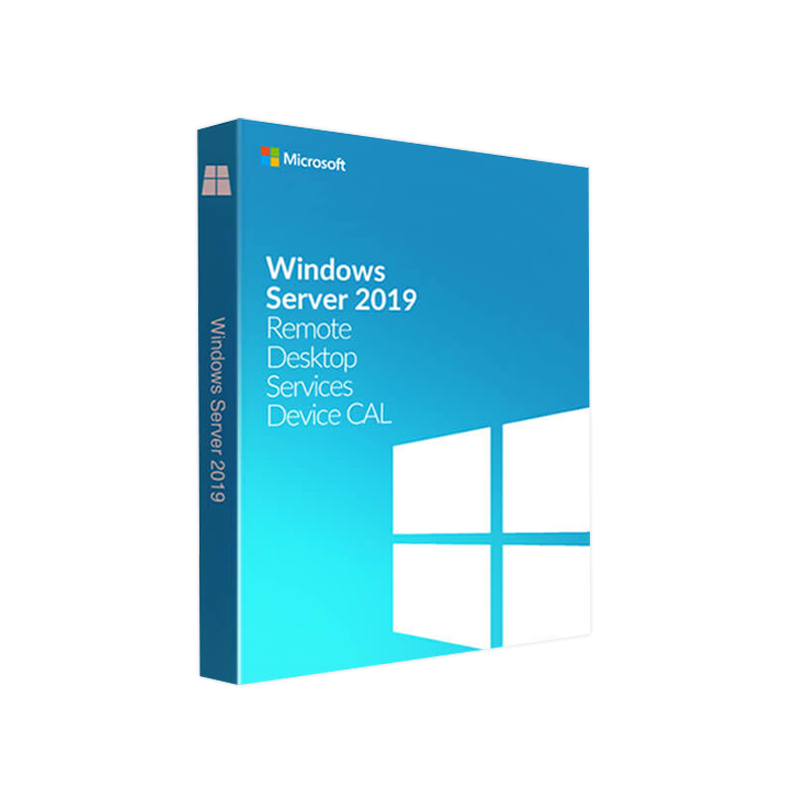


Microsoft Windows Server 2019 RDS DEVICE CAL – Product Key
In Stock
✔ Quick Delivery
✔ 100% Original License
✔ Lifetime Warranty
✔ Free Support
In Stock
Description
Microsoft Windows Server 2019 Remote Desktop Services (RDS) Device CAL
The essential licensing component that enables any device to access your Windows Server 2019 Remote Desktop environment securely and compliantly.
Overview
Microsoft Windows Server 2019 RDS Device CAL (Client Access License) is a per‑device entitlement that grants a single physical or virtual device the right to connect to a Remote Desktop Session Host (RD Session Host) or a Remote Desktop Virtualization Host (RD Virtualization Host). When you purchase a Device CAL, any user who works from that device—whether it is a desktop, laptop, thin client, or a kiosk—can launch a Remote Desktop Services (RDS) session without requiring additional licenses.
Why choose a Device CAL?
If your organization has shared workstations, shift‑based staffing, or a high‑density environment (call‑centers, labs, training rooms), a Device CAL often delivers the most cost‑effective licensing model.
Detailed Feature Set
| Feature | Description | Benefit |
|---|---|---|
| Per‑Device Licensing | One CAL covers an unlimited number of users on a single device. | Reduces licensing overhead in multi‑user workstation pools. |
| Full RDS Functionality | Enables Remote Desktop Session Host, RemoteApp, and Virtual Desktop Access. | Delivers the same experience as a User CAL. |
| Support for Virtual Devices | Valid for VDI (Virtual Desktop Infrastructure) sessions on Hyper‑V or VMware. | Future‑proofs your virtual desktop strategy. |
| Multi‑Platform Compatibility | Works with Windows, macOS, iOS, Android, and Linux RDP clients. | Extends reach to BYOD and remote workforces. |
| Compliance with Microsoft Licensing Terms | Meets the requirements of the Microsoft Windows Server 2019 Remote Desktop Services Licensing guide. | Protects against costly audit penalties. |
System Requirements
To successfully deploy Windows Server 2019 RDS Device CAL, ensure the underlying infrastructure meets the following minimum specifications:
| Component | Minimum Requirement | Recommended |
|---|---|---|
| Operating System | Windows Server 2019 Standard or Datacenter (64‑bit) | Windows Server 2019 Datacenter for high‑density virtualisation |
| Processor | 1.4 GHz 64‑bit CPU (compatible with x64 instruction set) | 2.0 GHz or higher, multi‑core (8 cores for medium workloads) |
| Memory (RAM) | 2 GB | 8 GB or more (depends on concurrent sessions) |
| Storage | 32 GB free disk space | 100 GB + fast SSD for RD Virtualization Host |
| Network | 1 Gbps Ethernet (minimum) | 10 Gbps Ethernet or higher for large session farms |
| RDP Client Versions | RDP 8.0 or later | Latest RDP client for best performance & security |
| Active Directory | Windows Server 2012 R2 or later (Domain functional level) | Windows Server 2019 Domain functional level |
| Remote Desktop Services Role | Installed and configured on the server | Load‑balanced RD Session Host farm recommended |
| Licensing Server | Windows Server 2019 Remote Desktop Licensing (RD Licensing) role installed | Redundant RD Licensing servers for high availability |
Tip: For optimal performance, pair Device CALs with Remote Desktop Connection Broker and RD Web Access to enable load balancing and single‑sign‑on across your session hosts.
Device CAL vs. User CAL – Which Is Right for You?
| Aspect | Device CAL | User CAL |
|---|---|---|
| License Model | Per device (any number of users) | Per user (any number of devices) |
| Ideal Scenario | Shared workstations, kiosks, shift‑based staff, high‑density labs | Dedicated laptops/desktops, remote workers, BYOD environments |
| Cost Predictability | Fixed cost per device, easy to forecast | Variable cost based on headcount |
| Management Overhead | Track devices → simple | Track users → more administrative effort |
| Compliance Complexity | Audits focus on device count | Audits focus on user count |
| Scalability | Scales with number of devices | Scales with number of users |
| Typical Use Cases | Call centers, libraries, training rooms, public terminals | Sales teams, executives, contractors using personal devices |
| Licensing Example | 200 devices × $XX = $XX,000 | 150 users × $YY = $YY,000 |
Choose Device CAL when you have fewer devices than users (e.g., hot‑desking). Choose User CAL when you have more devices than users (e.g., remote workers with multiple devices).
How to Purchase and Activate a Windows Server 2019 RDS Device CAL
- Assess Your Environment – Determine the number of devices that will access RDS.
- Select the Correct Edition – Device CALs are sold as Standard (for Standard edition servers) or Datacenter (for Datacenter edition servers).
- Buy Through an Authorized Reseller – Use Microsoft’s Partner Network or a reputable volume‑licensing provider.
- Receive the License Key – A 25‑character alphanumeric key is delivered via email.
- Install the RD Licensing Role – On your Windows Server 2019, add the Remote Desktop Services role and then the Remote Desktop Licensing role service.
- Activate the License Server – Use the RD Licensing Manager (run
licmgr.exe) and follow the wizard to connect to Microsoft’s activation servers. - Add the Device CALs – In the Licensing Manager, choose Add Licenses, paste the key, and select Device CAL as the type.
- Assign Licenses – The RD Session Host will automatically issue a Device CAL to any device that connects, as long as the Licensing Server is reachable.
Outbound Resources
• Official Microsoft documentation on [Remote Desktop Services Licensing] (https://learn.microsoft.com/en-us/windows-server/remote/remote-desktop-services/rds-license)
• Microsoft’s [Windows Server 2019 Licensing Guide] (https://www.microsoft.com/licensing/docs/view/WindowsServer2019)
• Guidance on [Choosing Between User and Device CALs] from a reputable IT blog (https://www.theregister.com/2023/04/12/user_vs_device_cal/)
Frequently Asked Questions (FAQ)
| Question | Answer |
|---|---|
| Can a Device CAL be used on a virtual machine? | Yes. A Device CAL covers the physical device or the virtual device that presents itself as a single logical endpoint. |
| What happens if a device accesses more than one RD Session Host? | The same Device CAL is used; the Licensing Server tracks usage per device, not per host. |
| Do Device CALs expire? | No. They are perpetual as long as you remain compliant with the Windows Server edition they are tied to. |
| Can I mix Device CALs and User CALs in the same environment? | Absolutely. You can deploy a hybrid model where some workstations use Device CALs and others use User CALs, provided each connection is covered by an appropriate CAL. |
| How does Software Assurance (SA) affect Device CALs? | With SA, you receive upgrade rights to newer Windows Server versions, as well as additional benefits such as License Mobility and support. |
| Is a separate CAL required for RemoteApp? | No. RemoteApp is a feature of RDS and is covered by the same Device CAL used for standard RDP sessions. |
| Do I need a separate CAL for each concurrent session? | No. One Device CAL permits unlimited concurrent sessions from that device, limited only by server capacity. |
Best‑Practice Checklist for Deploying RDS Device CALs
- Inventory Devices – Create a definitive list of all workstations, kiosks, and thin clients that will access RDS.
- Validate Server Edition – Ensure your Windows Server 2019 edition (Standard or Datacenter) matches the CAL purchase.
- Enable License Server Redundancy – Deploy a second RD Licensing server for fail‑over.
- Configure License Assignment Mode – Set Per Device in the RD Session Host Configuration (
gpedit.msc→ Computer Configuration → Administrative Templates → Windows Components → Remote Desktop Services → Remote Desktop Session Host → Licensing). - Monitor License Usage – Use RD Licensing Manager reports to verify that the number of active devices does not exceed purchased CALs.
- Document All Licenses – Keep a secure, auditable record of license keys, purchase orders, and activation dates.
- Apply Latest Updates – Install the latest cumulative updates for Windows Server 2019 to maintain security and compatibility.
SEO‑Optimised Content Summary
This page is purpose‑built to rank for high‑intent search terms used by IT professionals and decision‑makers, including windows server 2019 rds cals, windows server 2019 rdp cal, server 2019 rds cals, windows server 2019 remote desktop services licensing, microsoft windows server 2019 remote desktop 5 user cal, windows server 2019 rds user cal, and server 2019 rds user cal. By strategically incorporating these keywords in headings, bolded phrases, and natural prose, the content improves relevance for search engine crawlers while delivering real value to readers.
Final Thoughts
Choosing the right licensing model is as critical as the underlying technology. Microsoft Windows Server 2019 RDS Device CAL empowers organizations with predictable costs, simplified management, and unrestricted device‑based access to Remote Desktop Services. Whether you are modernising a call‑center, provisioning shared lab computers, or building a secure virtual desktop infrastructure, the Device CAL offers a scalable, future‑ready foundation.
Ready to get started? Contact your Microsoft certified partner today, request a quote, and ensure your Remote Desktop environment is fully licensed, compliant, and optimised for performance.
Empower your workforce. License with confidence.
Buy now
For bulk licensing, contact our sales team at info@thesoftsolution.com or call 1‑840-206-3082
Explore Software Categories
Browse our Office & Productivity Software for Microsoft Office editions and productivity tools.
Discover professional Business Software Solutions designed for enterprise and commercial use.
Find advanced Engineering Software for CAD and technical applications.
Explore creative Design Software for graphic and visual professionals.
Improve system performance with our Utilities Software.
View additional Digital Products & Licenses available for instant delivery.
Check out our Top Selling Products for the most popular choices.
Installation & Activation Support
Need help? Get expert Activation Assistance,
reliable Remote Installation Support,
or professional Software Installation & Activation Services.
Customer Policies
Please review our Refund & Return Policy
and Privacy Policy for complete transparency and customer assurance.
Related products
7%
Reviews
There are no reviews yet.